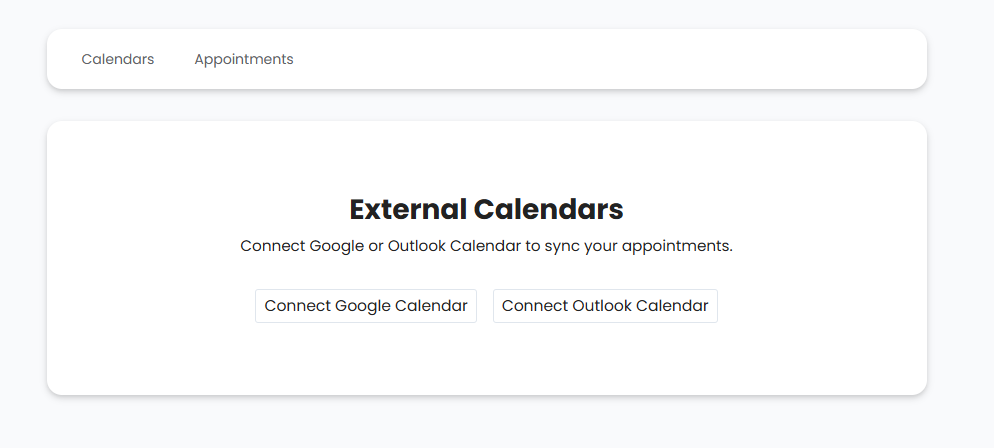
Optimize your appointment management by connecting your Google and Outlook calendars directly to our platform. This integration allows you to centralize your availability, avoid scheduling conflicts, and simplify the way you schedule meetings. To set up the integration, go to the Marketing Tools section, then to Appointment Scheduling, and finally to Integrations.

How to integrate your additional calendars
1
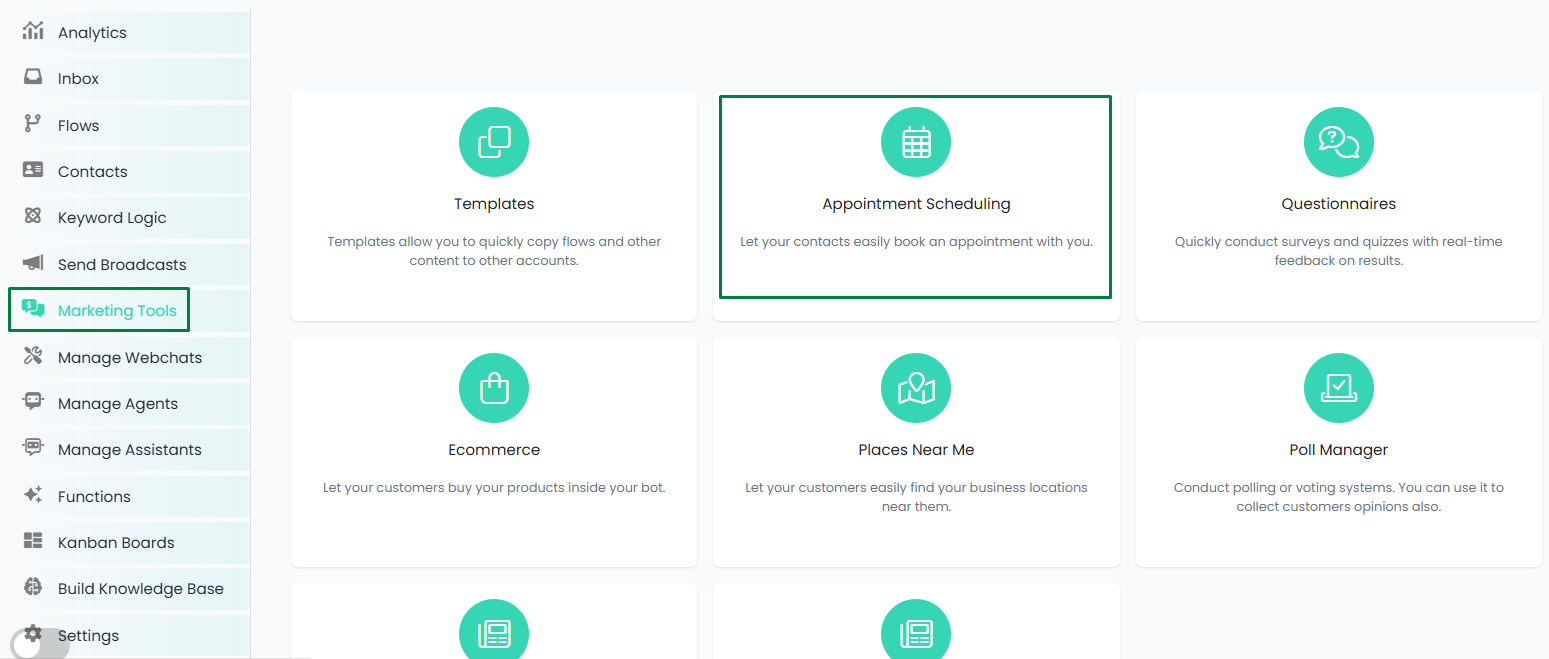
Go to Marketing Tools > Appointment Scheduling.Appointment Scheduling
2
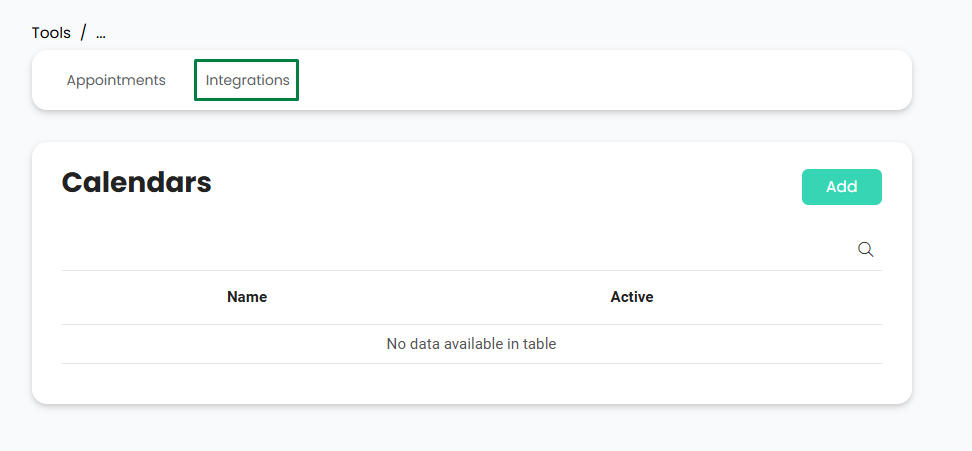
Next, go to Integrations.Integrations
3
Then, External Calendars.Integrations
4
Select your calendar platform Choose either Google Calendar or Outlook Calendar, depending on the platform you wish to integrate.
5
Connect your account and grant permissions Select the email account you want to use to connect your calendar. Follow the instructions to grant the necessary permissions to the platform.
Once these steps are completed, your additional calendars will be synced and ready for use.

Benefits:

Greater flexibility

Manage your availability from multiple calendars in one place.

Avoid scheduling conflicts

Ensure your appointments don’t overlap with other events.

Simplify your workflow

Keep all your calendars synced for more efficient scheduling.