
If you connect your Google Calendar or Outlook calendar, the appointment manager syncs your calendars to ensure there are no double bookings, and it sends automated confirmations and reminders to participants.
Create your Calendar Inside ChatbotBuilder
Go to Marketing > Appointment Scheduling and click the Add button.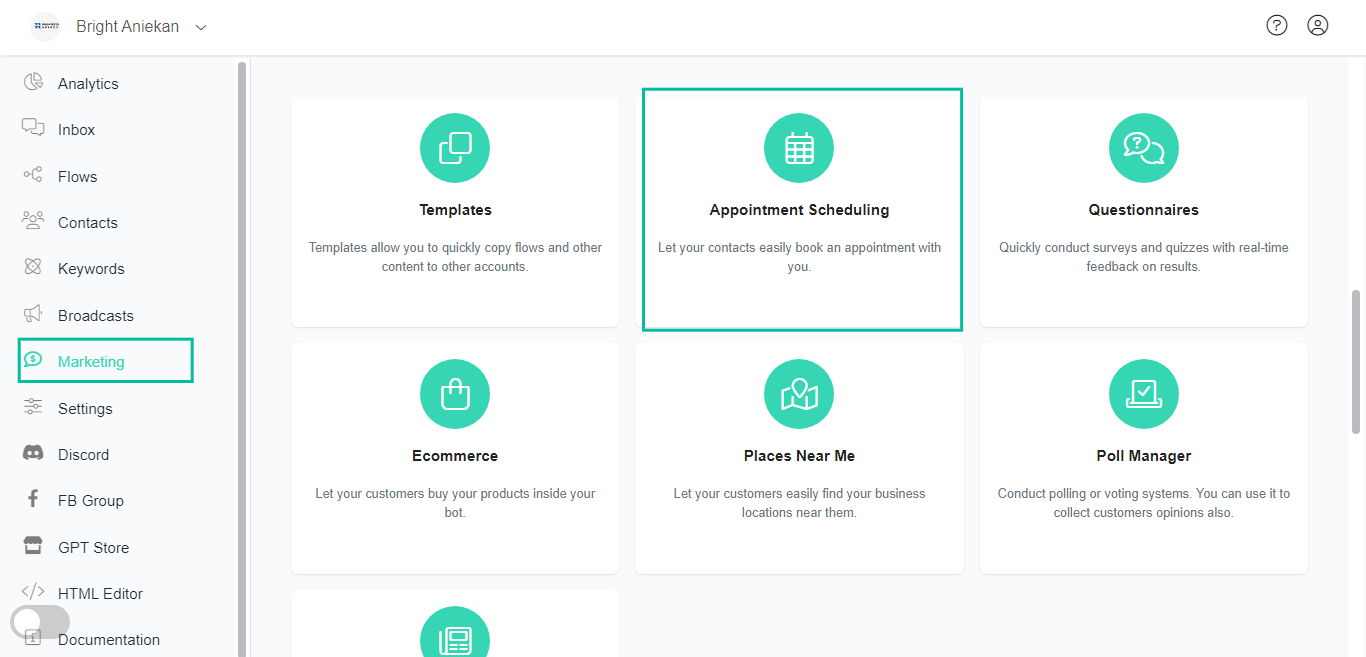
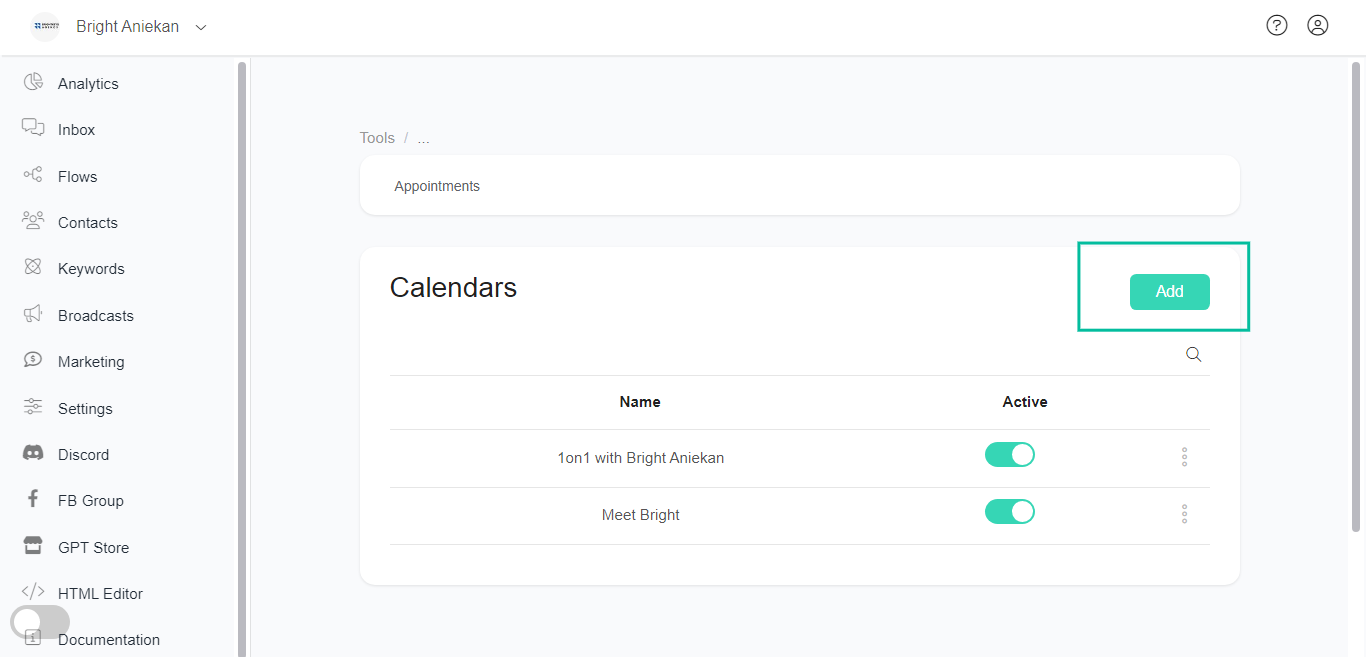 The most important thing you should provide is your availability.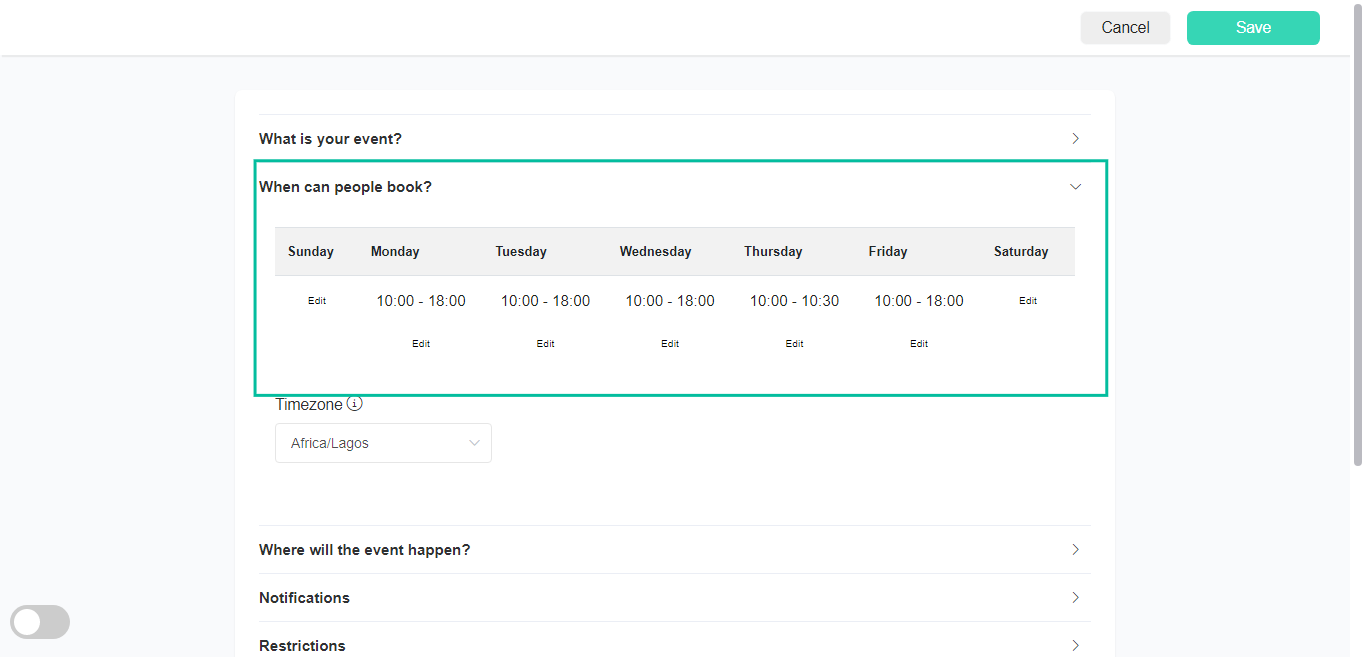
 Our system will automatically create the confirmation flow and reminder flow. If you want to edit the confirmation message and reminder message, go to flows and edit the flows related to your calendar.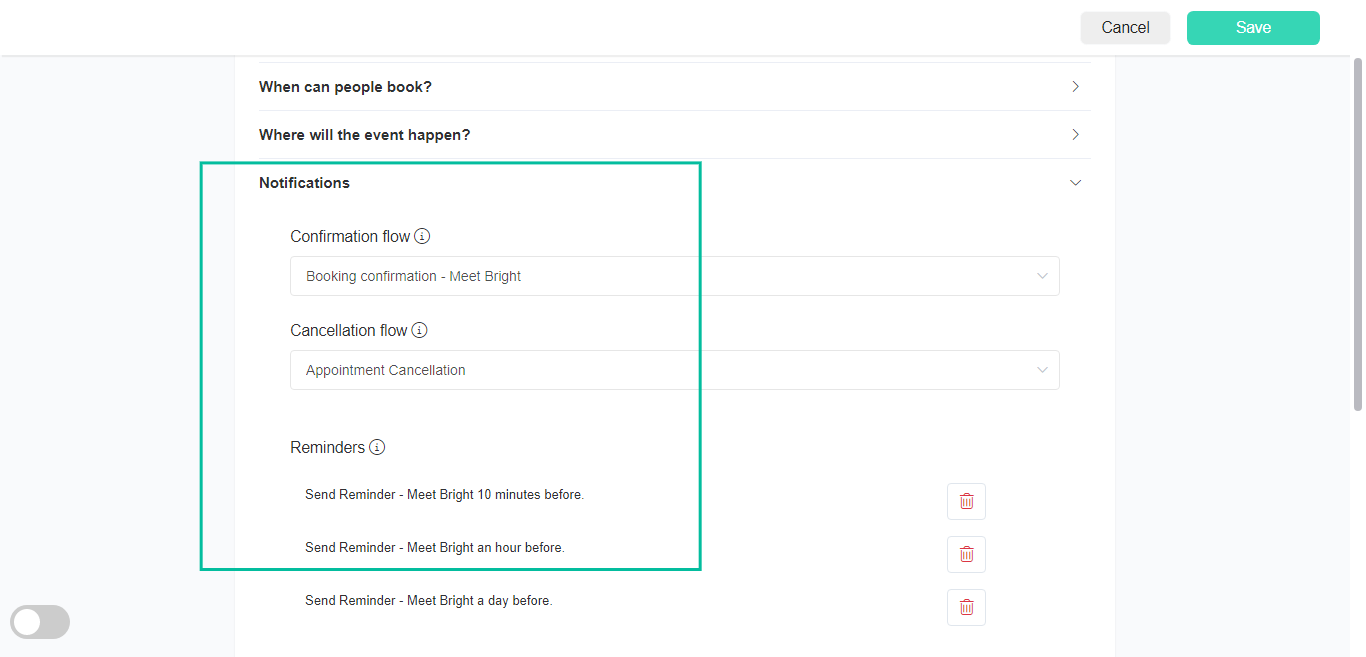
The most important thing you should provide is your availability.Our system will automatically create the confirmation flow and reminder flow. If you want to edit the confirmation message and reminder message, go to flows and edit the flows related to your calendar.Connect Google Calendar or Outlook Calendar (optional)
- Google Calendar: Go to Settings > Integration > Google Calendar and click the Connect button.
- Outlook Calendar: Go to Settings > Integration > Outlook Calendar and click the Connect button.
Be sure to collect the user’s email address before the user schedules an appointment to automatically send the user a calendar invitation through email.
Share the scheduling link during the bot conversation
-
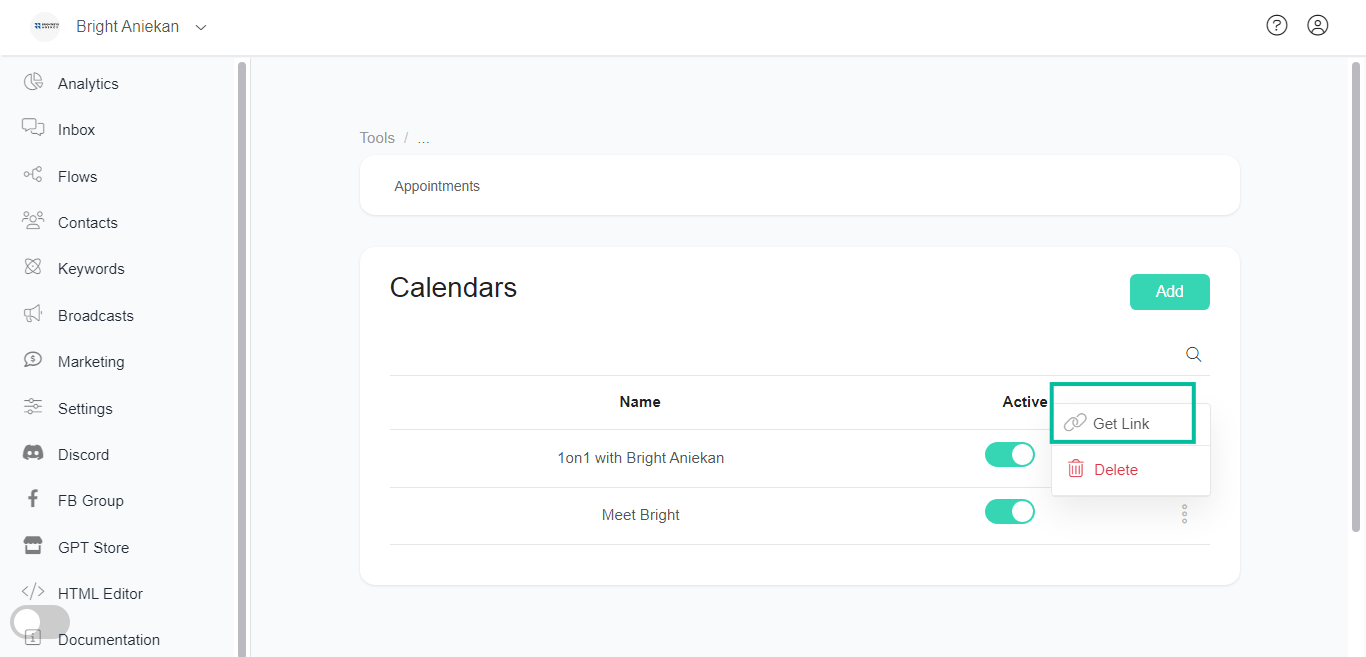
Get the scheduling link by going to Marketing > Appointment Scheduling and clicking the three dots on the Calendar you want to share the scheduling link.
-
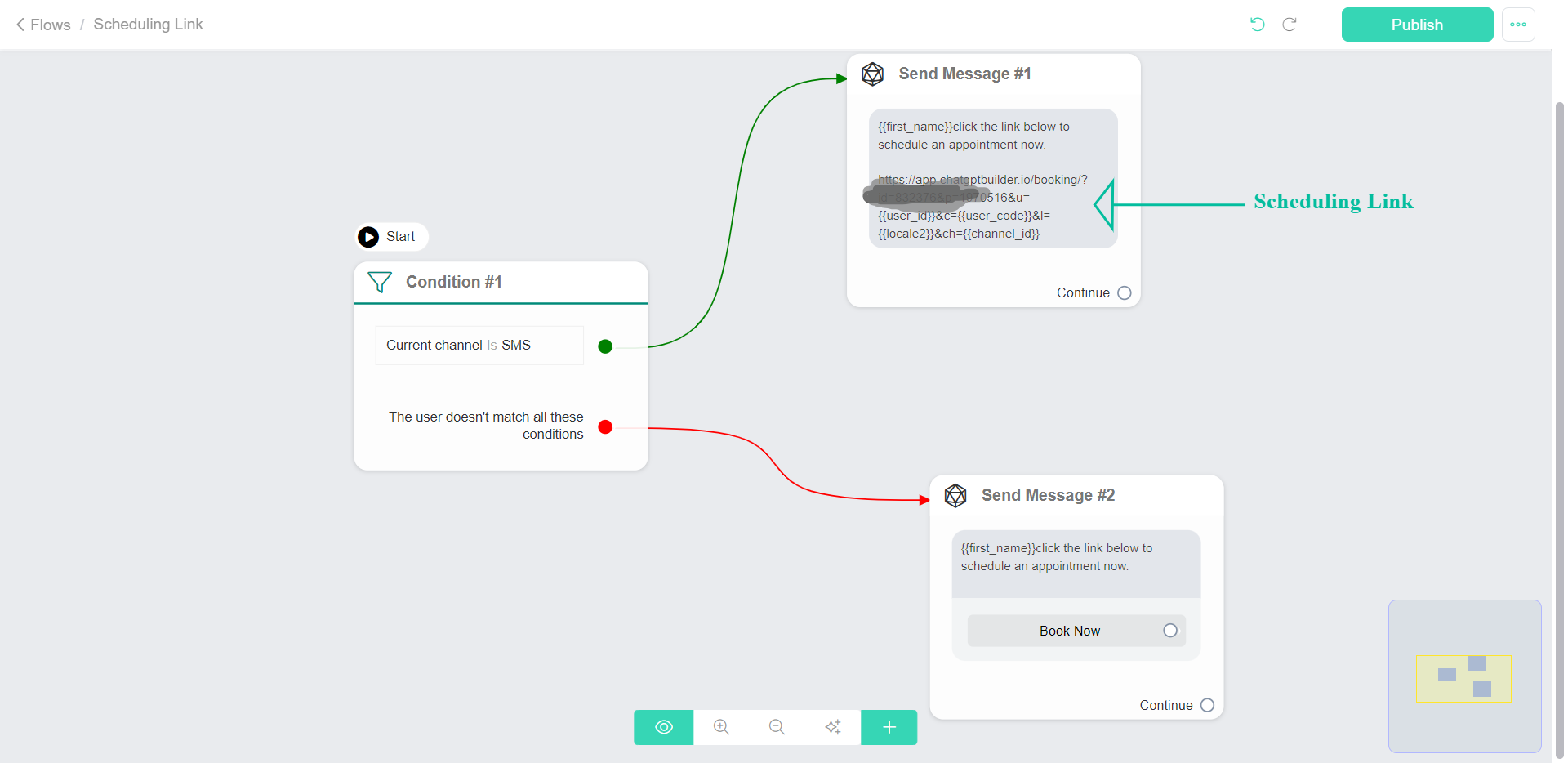
Use the scheduling link as a button link for channels that support buttons that open a website. For channels that don’t support a button that opens a website link SMS channel, you can send the scheduling link as a TEXT message.
-
Share the scheduling link from the inbox
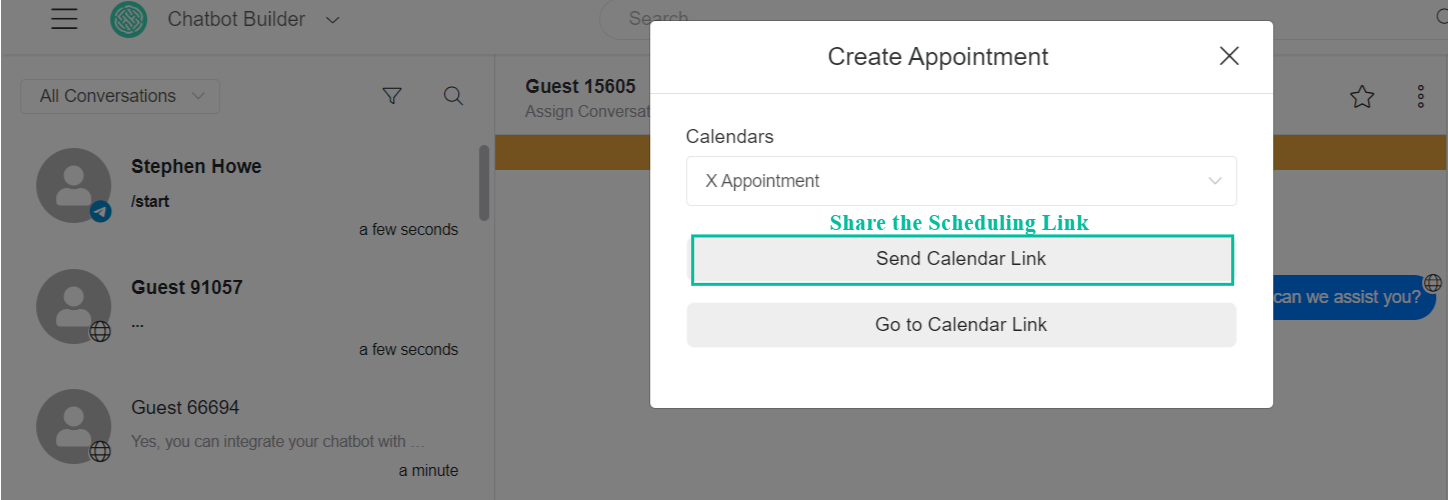
Sometimes, you may need to send the scheduling link to the user manually through the inbox.
Click the Calendar Icon to send the scheduling link to the user.
-
View Scheduled Appointments
Go to Tools > Appointment Schedule > Appointments
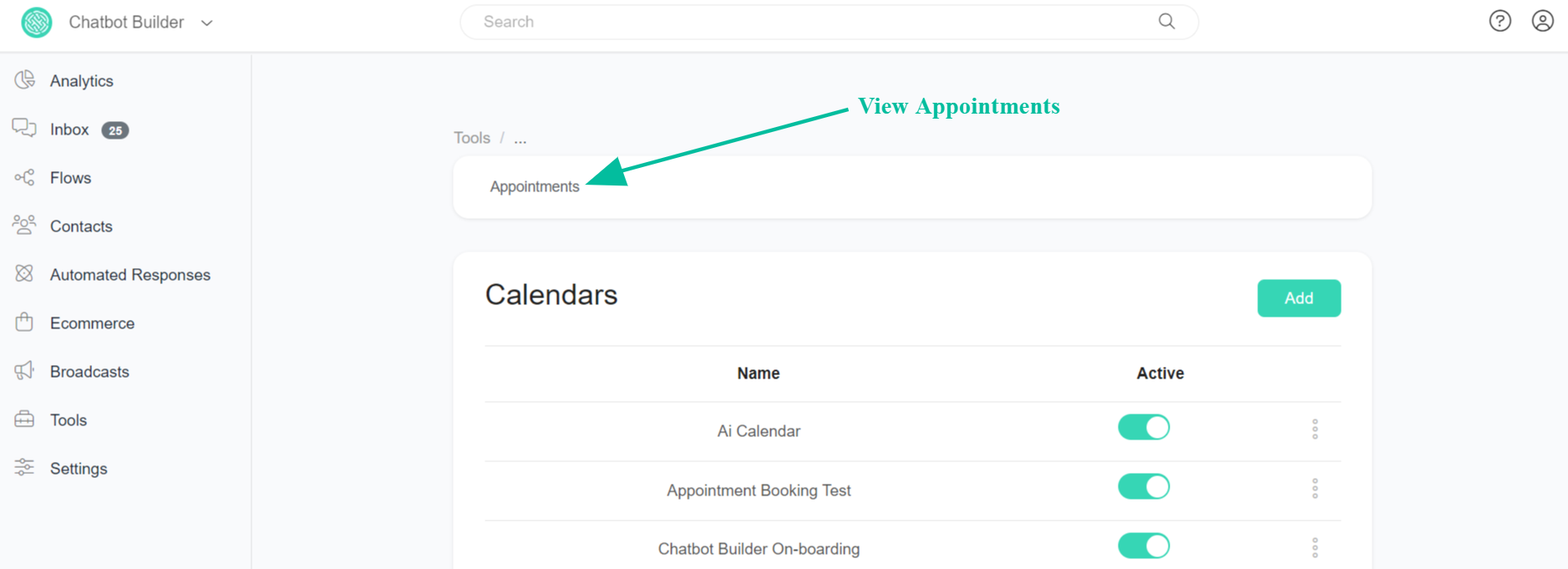
It’s important to note that past time slots visible on the calendar are NOT bookable; they are shown for informational purposes only as part of the system’s current design.