
Tag-Based Automation
If you give a tag to a user, add them to a special group on Facebook.
Engagement-Based Automation
When a user clicks on your email, sign them up for a series of messages on Messenger.
E-commerce Automation
If someone places a new order, tell the administrators through email or text message.
Custom Field Automation
If the value of a Custom Field changes, notify the administrator.
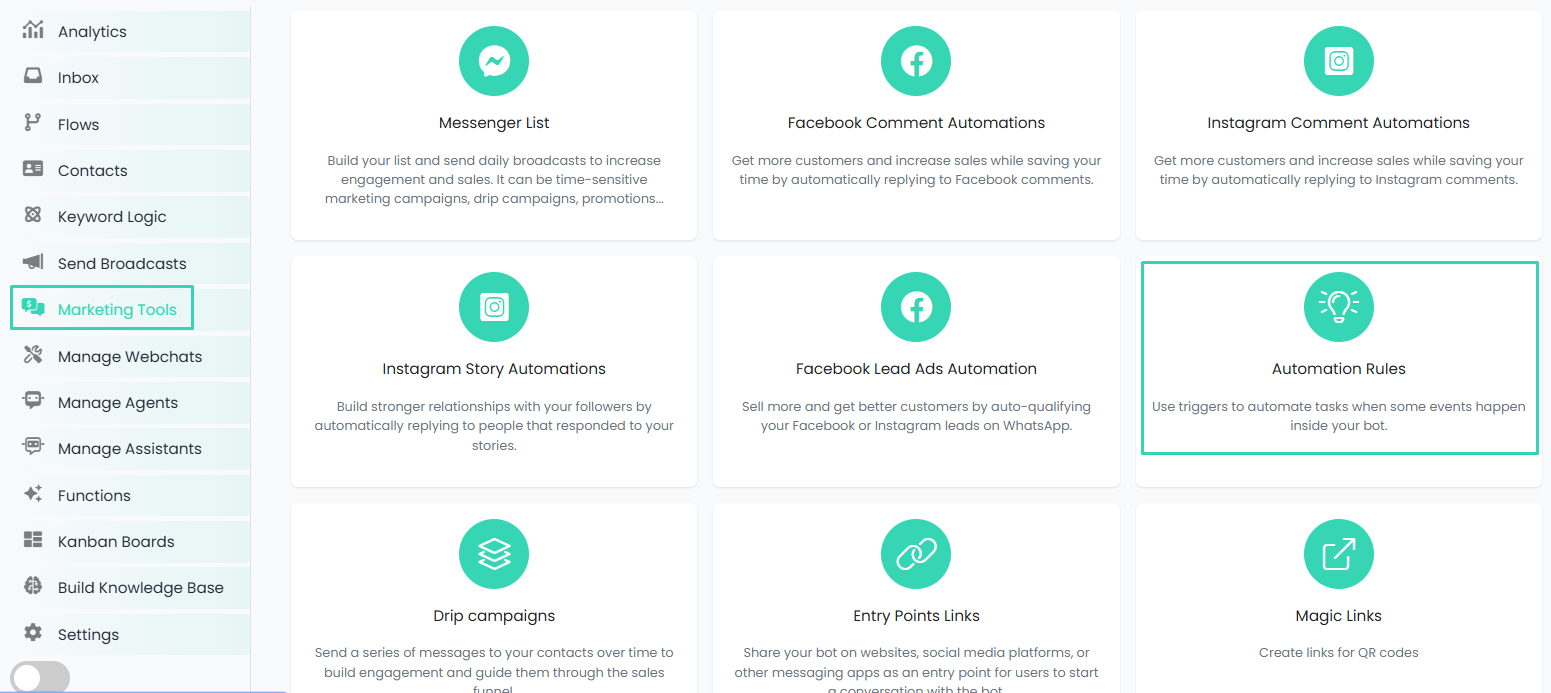 The table below the “Add” button will show you the details of every rule which you had created and its status whether it is active or not.
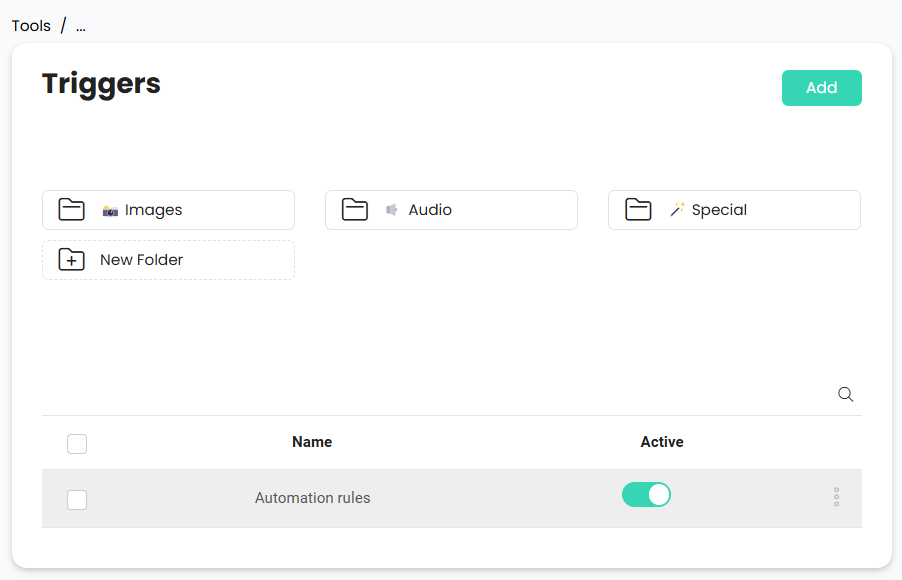 You can also rename, move to folder or delete the rules by selecting the 3 dots located next to the rule name in the table.
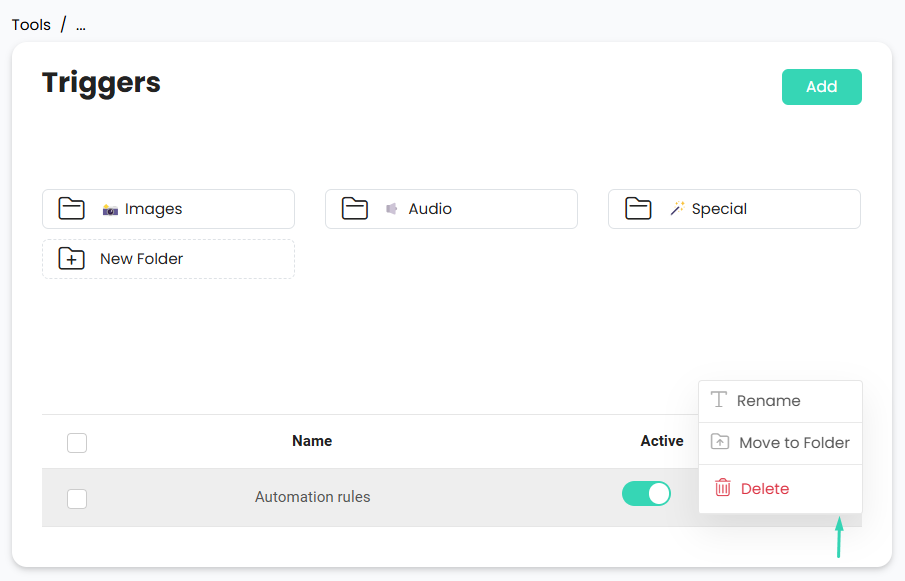 Now, pick a name for your new rule in the “Add New” popup. Just choose a name you like for this automation. The popup will look something like this:

Create a Rule
After you press the “Add New” button on the main page in the “Triggers and Actions” part, our platform will guide you to a setup page that resembles the image below: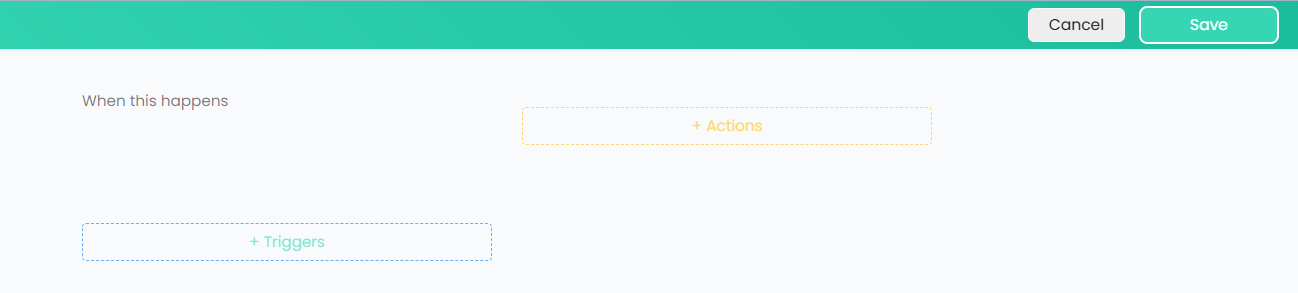 On this page, there are two columns – Triggers and Actions.
Triggers
You can pick a trigger by clicking the green “+ Triggers” button. In Chatbot Builder platform, there are more than 30 triggers options: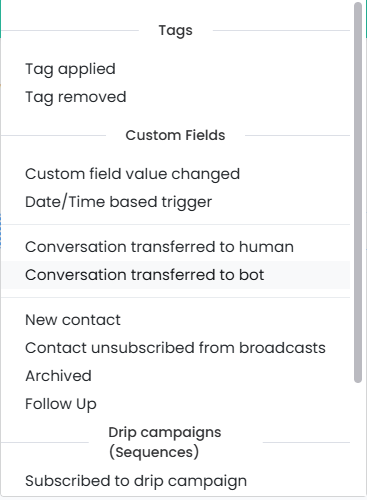
Tags
Tags
Custom Fields
Custom Fields
- Custom field value changed
- Date/Time based trigger
Conversations
Conversations
- Conversation transferred to human
- Conversation transferred to bot
Contacts
Contacts
- New contact
- Contact unsubscribed from broadcasts
- Archived
- Follow Up
Pipelines
Pipelines
- New opportunity / ticket created
- Opportunity / ticket moved to stage
- Opportunity / ticket value changed
- Opportunity / ticket status changed
- Opportunity / ticket priority changed
Drip campaigns (Sequences)
Drip campaigns (Sequences)
- Subscribed to drip campaign
- Unsubscribed from drip campaign
Voice
Voice
- Call ended
- Call recorded
- No user input (Voice Channel)
Ecommerce
Ecommerce
- WhatsApp Shopping Cart Sent
- User asked about a product
- Cart abandoned
- New order
- Order accepted
- Order shipped
- Order concluded
- Order canceled
- Category added to cart
- Product added to cart
- Product removed from cart
- Product Ordered
Entry Points Links
Entry Points Links
- Contact referred a new contact
- contact referred existing contact
Email
- Email delivered
- Email opened
- Email clicked
- Email unsubscribed
- Email dropped
Actions
Actions are the tasks your chatbot will do when a specific trigger (rule) happens. You can pick any action based on your needs by clicking the orange “+ Actions” button. Choose the action that fits the trigger, and start making the rules automatic by saving the process.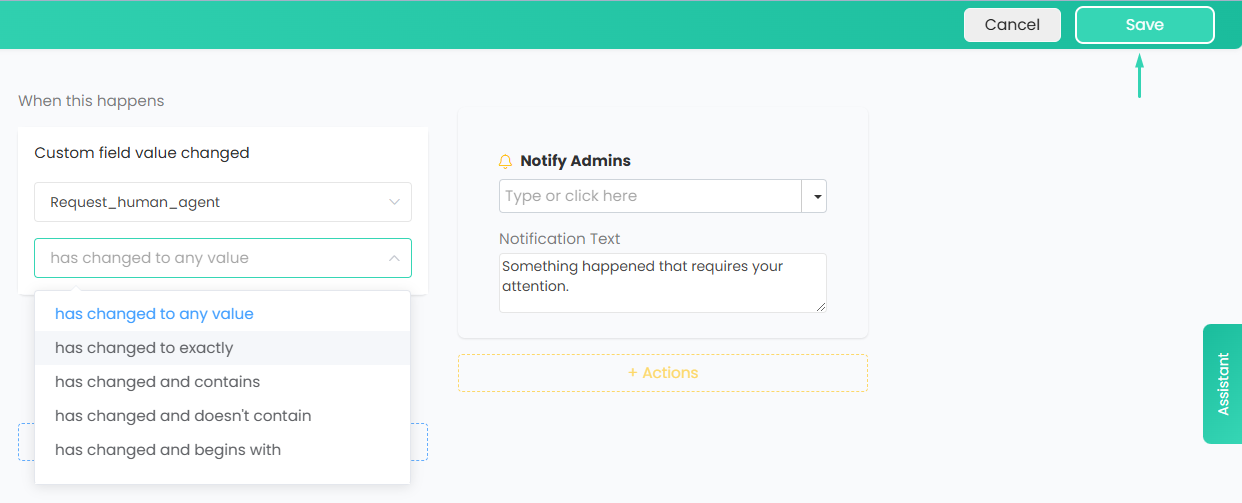 With these automation rules, you are ready to make the most of automation in Fliqr AI and take your processes to the next level.